Complete Migration of Google Workspace to Microsoft 365


Migration between Google Workspace and Microsoft 365 is a common occurrence. Because of the expansion of business activities, mergings, or the user’s own preferences. If you want to know how to migrate from Google Workspace to Microsoft 365.
Then, you have come to the right place. In this blog, I will explain the steps to transfer each Google service - Gmail, Calendars, Contacts, and Google Drive- and ways to move a complete Google Workspace to a Microsoft 365 account migration.
Why Transfer Google Workspace Account to Office 365?
To start the procedure, let’s understand the reasons for moving the Google Workspace account to Microsoft 365.
- Microsoft 365 provides desktop tools - Word, Excel, and PowerPoint with advanced features.
- Office 365 offers you enterprise-grade security and compliance facilities.
- When a business expand their operations, they want more functions for productivity and collaboration. Microsoft 365 is helpful for integration and security.
- Many partners and clients want their documents in native Microsoft formats like DOCX, XLSX, etc for the formatting issues.
- Mergers and acquisitions are common reasons for moving from Google Workspace to Microsoft 365.
- Users' own preferences for Microsoft 365 tools can also be the reason to switch accounts.
There are many reasons to move the Google Workspace account. Now, for migration, I am going to explain the steps of transferring each Google service to Office 365 if you want to move specific data. Start by migrating the mailbox.
Migrate Emails from Google Workspace to Microsoft using IMAP
If you want to transfer your G Suite emails, then IMAP configuration is a great option. First, enable the IMAP option in your Gmail account, and generate an app password. And then, follow the steps below. Also, you must add and verify a new domain in Microsoft 365 and assign the license.
- To start the migration, create a CSV file where you make the headers - EmailAddress, UserName, and Password.
- In the email address: type a new Microsoft 365 email address. Provide the source Google Workspace email address, user name, and then provide the Google App password.
- Go to the Exchange Admin Center, go to Migration.
- Choose Endpoints, then click the Add button. Select the IMAP option.
- Enter imap.gmail.com as server, port: 993, and Encryption: SSL.
- In the Migration, add a migration batch. Select Migrate to Exchange Online and IMAP migration.
- Upload the CSV file and select the endpoint you just created.
- Start the batch automatically. Your emails are now syncing to Office 365.
Once it is done, update your DNS settings and change the MX record to point to Microsoft 365.
Transfer Google Workspace Contacts to Microsoft 365
To move the contacts manually, you have to download them and import them to Outlook Web App. Here are the steps.
- Log in to the Google Contacts and choose the contacts you want.
- Select the Export button. Click on Outlook CSV.
- Then, export the contact file to the computer.
- Go to the Outlook Web using a Microsoft 365 account.
- In the People icon, choose Manage contacts.
- Click Import contacts. Browse the exported contacts and import them.
Migrate Google Workspace Calendar to Microsoft 365
- In the Google Calendar, go to Settings.
- Choose Import & export, then press the Export option. Our file is now downloaded in ZIP format.
- Extract the ZIP file, log in to the Outlook Web using a Microsoft 365 account.
- Click on the Calendar icon and the Add calendar option.
- Press the Upload from file, browse your extracted ICS file, and select the target calendar.
Transfer Google Drive to Microsoft 365
Manually migrating Google Drive to Office 365 is a simple process. You can either download the documents and upload them or use Google Takeout to directly add to OneDrive.
If you have a few files that you want to move to Microsoft 365. Follow these steps.
- In the Google Drive that connects your Google Workspace, choose the files that you want to move.
- Download it to your local desktop.
- Log in to the OneDrive and upload the downloaded file.
For a Google Takeout option.
- Go to the Takeout web page. Click the deselect option.
- Scroll to the Drive section and select it.
- Scroll down to the end, click on Next Step.
- In the destination option, choose Add to OneDrive.
- Choose frequency, file type, and size. Then, press "Link accounts and create export button".
- Sign in to the Microsoft OneDrive account using Admin credentials.
Then, your Google Drive data will move to the OneDrive account. Now, I have explained the steps of popular Google Workspace services, Gmail, Google Drive, Google Contacts, and calendars. There are still other services, Google Docs, Sheets, Slides, and Meets, where users want to move their data to Microsoft 365. Follow the procedure to properly transfer them.
Migrate Google Docs/Sheets/Slides to Office 365
The process of Google Docs, Sheets, and Slides in Microsoft 365 is the same. You can move them by manually downloading and uploading, or using the Google Takeout method. There is another native Migration Manager tool that can help you move the files of Google Docs, Sheets, and Slides. You need a verified Google Admin and Microsoft Admin credentials.
- First of all, sign in to the Google Workspace Marketplace using an admin account.
- Go to the Domain install and click the Continue button. Agree to the terms of service and press Allow.
- Once the installation is complete, click Done. Go to the Migration Manager via the Microsoft Admin Center. Hit the Next button.
- Click Sign in to Google Workspace for the connection. Now, your Google is connected to Microsoft Migration Manager.
- Now, start Google Drive scanning and assessing by clicking on the Add Drives.
- Choose a method from All New Drives, Single Drive, or Multiple specific Drives.
- Highlight any or all the tasks and then scan them from the menu bar.
- After it completes, review the scanned tasks. Then, you are ready to migrate.
- In the Drives tab, choose your scanned tasks. Click Copy to Drive migrations.
- Edit the Destinations to provide the location where you want to migrate.
- Check the Task migration settings. Then, click Copy to Drive migrations.
- Continue the steps by going to Drive Migrations tab. Review the destination paths in Google Migration Manager.
- After that, select Map identities and provide the Google user source IDs and Microsoft destination source ID.
- Lastly, select the Tasks and click on the Migrate button.
Once the process is done, all your Google Docs, Sheets, and Slides that are stored in Google Drive will move to the OneDrive or SharePoint. In this, it also moves the stored files, such as PDFs, Videos, Images, Meet recordings, etc.
Limitations of Manually Migrating Google Workspace Data to Microsoft 365
Above, I have explained the steps of manually transferring all Google Workspace data to Microsoft 365. They are free to use. However, using them, you can face these challenges.
- As you can see, there are different methods to move Google emails, contacts, calendars, Drive, etc., which will take time to move the complete Google Workspace to Microsoft 365.
- There is no direct option for transferring emails, contacts, and calendars.
- The folder structure of Google is different than microsoft. So, during the process, the folder may not be completely transferred correctly.
- Your permission and sharing settings may not have been properly migrated or preserved.
- The native migration manager tool can be complex for some users. It requires you to create user mapping, domain verification, and many administrative configurations.
- The risk of data loss or incomplete migration is present while manually migrating.
- You are required to perform multiple migration processes to transfer a complete Google Workspace account to Microsoft 365.
Therefore, the manual methods are not ideal ways for organizatsiont to migrate Google Workspace to Micrsoft 365. For this reason a professional tool would be a great choice
Transfer Google Workspace to Office 365 With with Professional Tool
The SysTools G Suite to Office 365 Migration Tool helps you switch from Google Workspace to Microsoft 365 efficiently. The utility helps to transfer all Google Workspace data including emails, contacts, calendars, and documets in just a few clicks. It allows the user to migrate multiple data as well as selective items using date filter. The tool preserves file permission and folder hierarchy throughout the process which makes this a great solution for migration.
Working Steps of the Professional Software
- Install and start the tool on Windows or Linux machine.
- Select the source as G Suite and destination as Office 365.
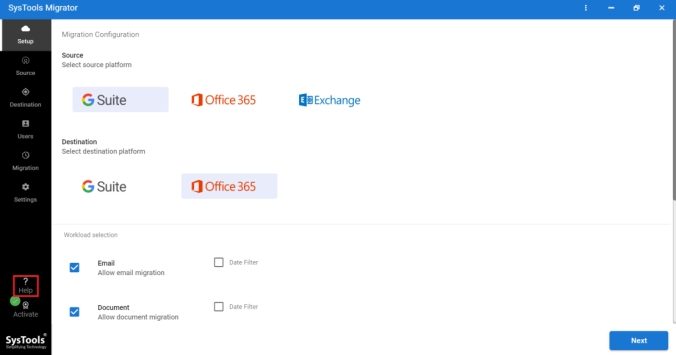
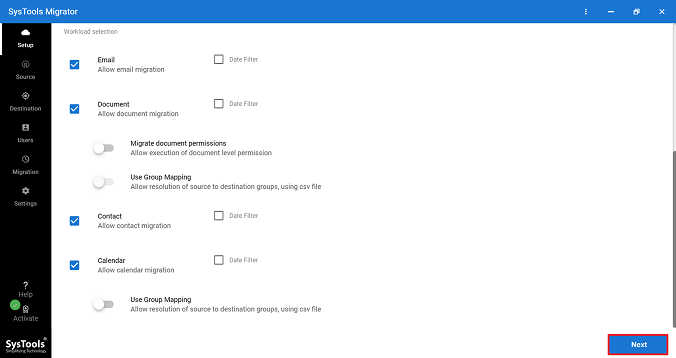
- Select the category of items to migrate and apply the preferred date-range filters.
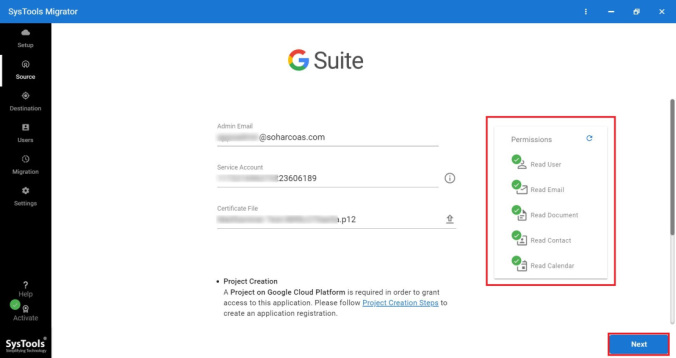
- Go to Source window. Enter and validate G Suite admin id, service account and certificate file path.
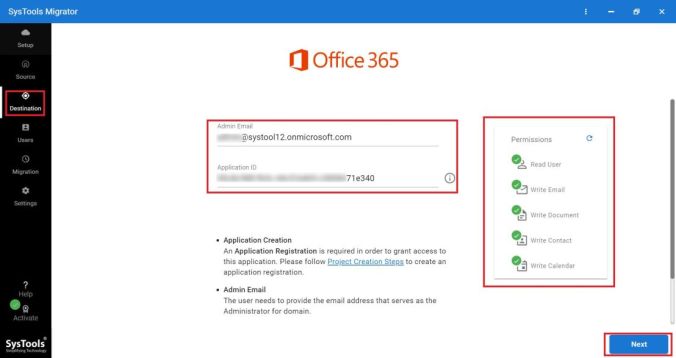
- Go to Destination window. Enter and validate Microsoft 365 admin ID, application ID.
- Import user list from the source account that needs to be processed for migration.
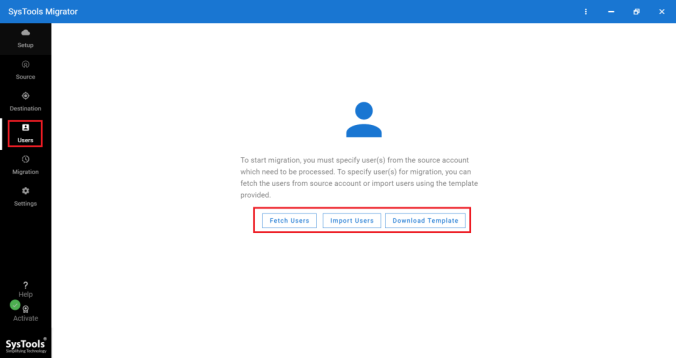
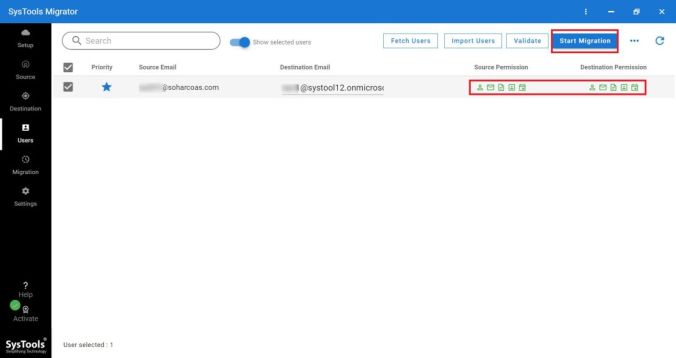
- Now, perform user validation and then, click on Start Migration to start G Suite to Office 365 migration.
Conclusion
In this blog, I have provided steps to migrate Google Workspace to Microsoft 365. Here, you will get the procedure of transferring all the Google Workspace services and their data. From this you can manually move your individually data in Microsoft 365. But, if you want to migrate complete G Suite account to Microsoft 365. Then, the professional software would be the great option.
Frequently Asked Questions
Q1. What data can be migrated from Google Workspace to Office 365?
Manually you can migrate all types of data from G Suite to Microsoft 365. Emails, contacts, calendars, Drive stored files, Google Docs, Sheets, Slides and Google Meet recording. However, it is not possible to move the permission of the files and sharing settings.
Q2. Is there need of admin access to transfer Google Workspace data to Microsoft 365?
Yes, generally admin access is required when you have to migrate data of all the user accounts. But, if an individual users are transferring its data, then they only need thier account details. A enterprise Google Workspace to Microsoft 365 migration, verified admin access are required.
Q3. Which permissions are required to move data from G Suite to Office 365?
To perform a standard migration from Google Workspace to Microsoft 365, you need administrator permissions of both environments.